
Follow these simple steps to download, install, open and activate Creative Imagination Organiser on an Ubuntu computer.
The illustrations below show CIO Free Basic. The installation process is the same for CIO Advanced.
For your security, only download CIO from the official Creative Imagination website:
www.creativeimagination.global
Please do not download CIO from any other website, third-party source or file-sharing service.
Download CIO for Ubuntu
Sign in to My CIO Account on the Creative Imagination website and select Download CIO Ubuntu.
CIO will normally be downloaded into your Downloads folder.
When the download has finished, open your Downloads folder and double-click the CIO installation file.
Install CIO
Ubuntu should open the CIO installation file in the App Centre.
You may see a message headed “Potentially unsafe”. This message is displayed because CIO has been downloaded directly from the Creative Imagination website rather than through the Ubuntu App Centre.
This does not mean that Ubuntu has detected CIO as a threat. Ubuntu is warning you that the program has come from outside its own App Centre.
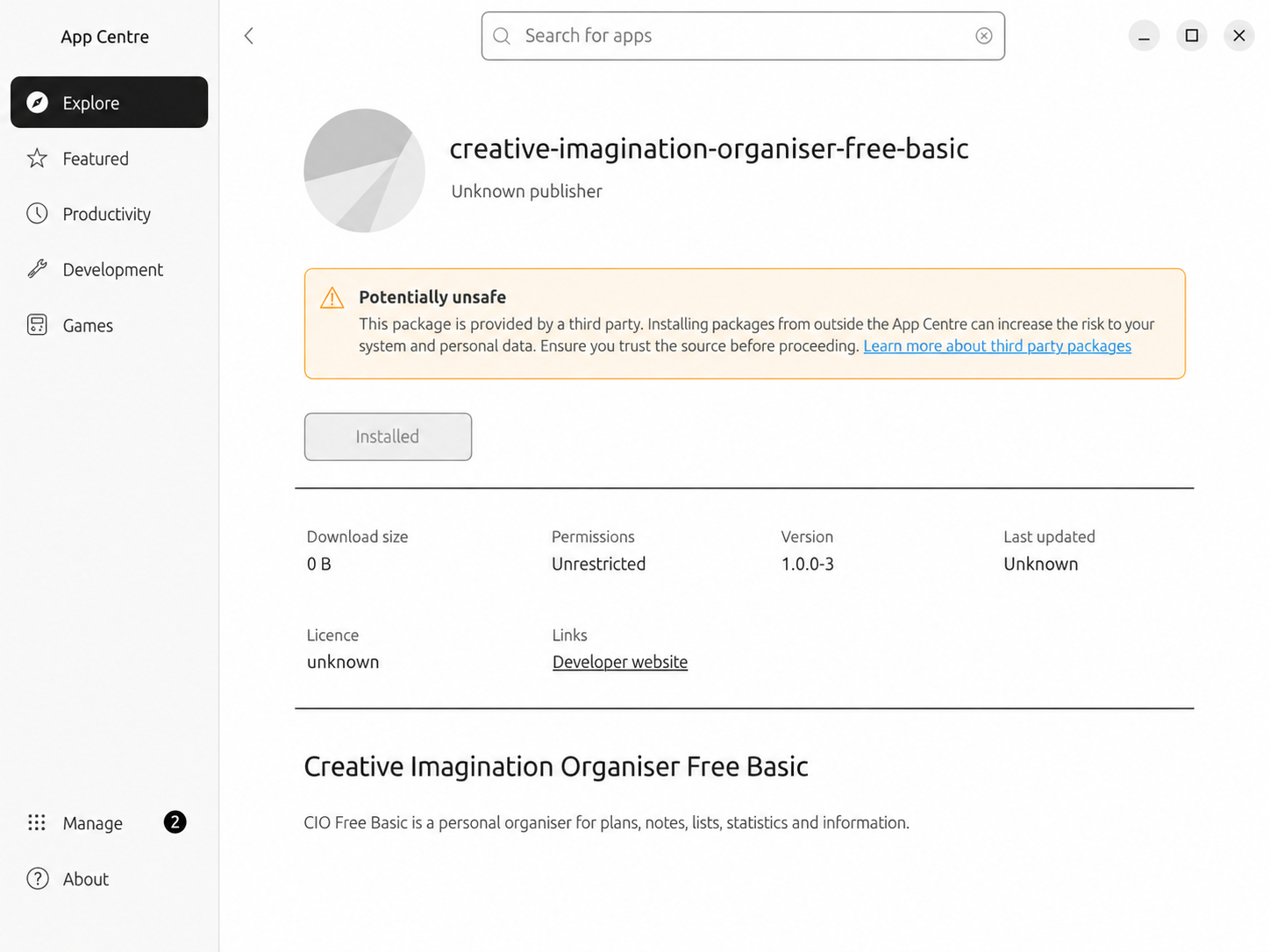
If you downloaded CIO from www.creativeimagination.global, select Install.
Ubuntu may then ask: “Are you sure you want to install it?”
Select Install again.
Enter the password you normally use to sign in to Ubuntu and select Authenticate. This gives Ubuntu permission to install CIO.
Ubuntu will now install CIO. When the installation has finished, the App Centre will show Installed.
You can then close the App Centre.
Open your Ubuntu Applications
At the bottom-left of the Ubuntu desktop, click the Show Applications button.
It is the small circular button containing the Ubuntu-style dots.

Find Creative Imagination Organiser
Look through your applications for the blue and gold CIO icon.
If CIO is not shown on the first page of applications, scroll across to the next page.
Click the CIO icon to open Creative Imagination Organiser.

Open Account & Licence
The first time CIO opens, it will tell you that CIO needs to be activated on this computer.
Select Open Account_Licence.
This will open the Account & Licence section in CIO Settings.
Activate CIO
Enter the email address used for your My CIO Account.
Enter the CIO licence key shown in your My CIO Account.
Then select Activate licence.
CIO will confirm when the licence has been activated successfully. The top of CIO will then show Licence: Activated and your application access will show as Active.
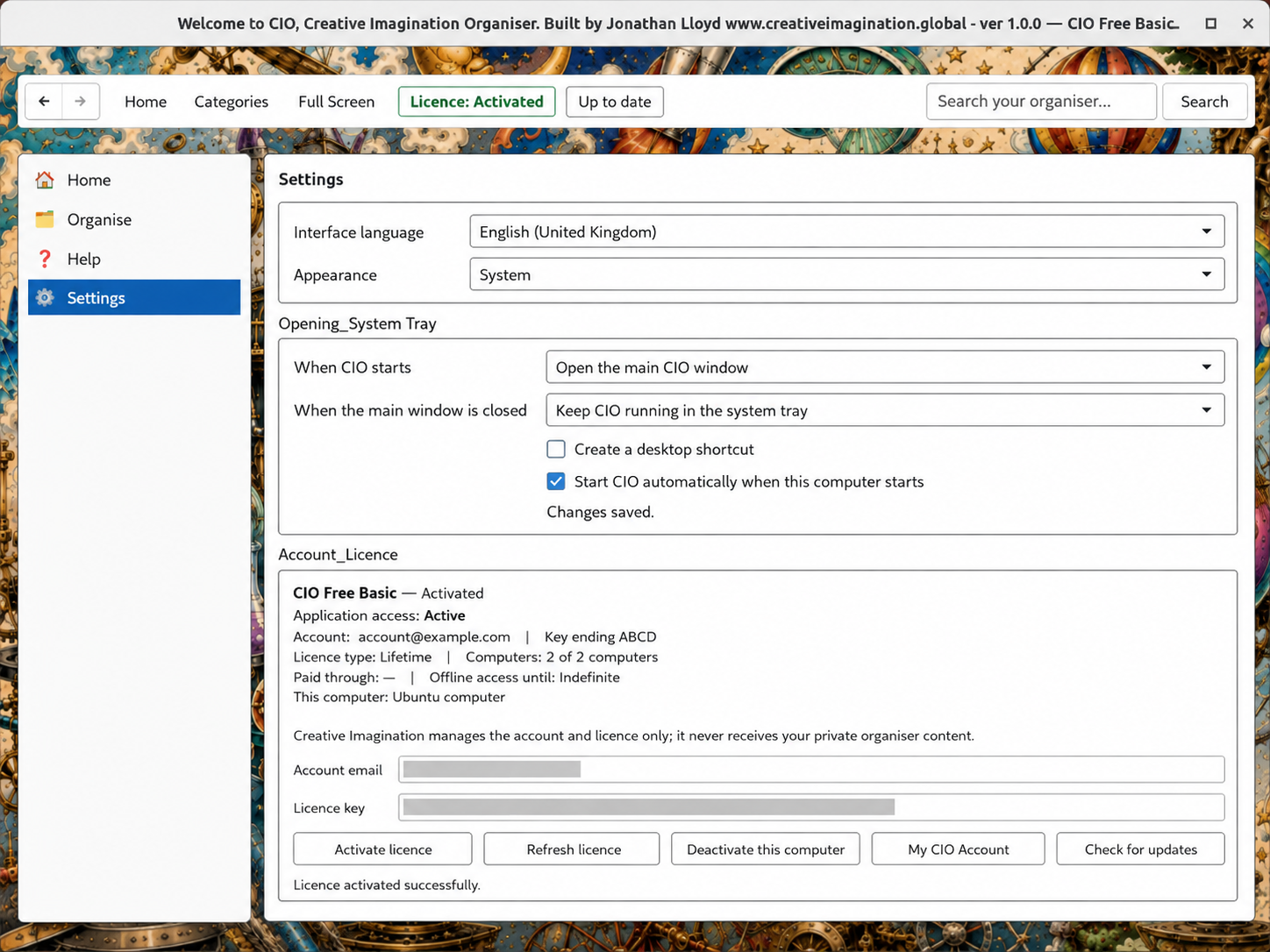
Choose how CIO starts
In Settings, we recommend ticking:
✓ Start CIO automatically when this computer starts
This means CIO will be ready for you whenever you start your computer.
You can also leave Create a desktop shortcut ticked if you would like a CIO shortcut on your desktop.
These settings can be changed at any time.
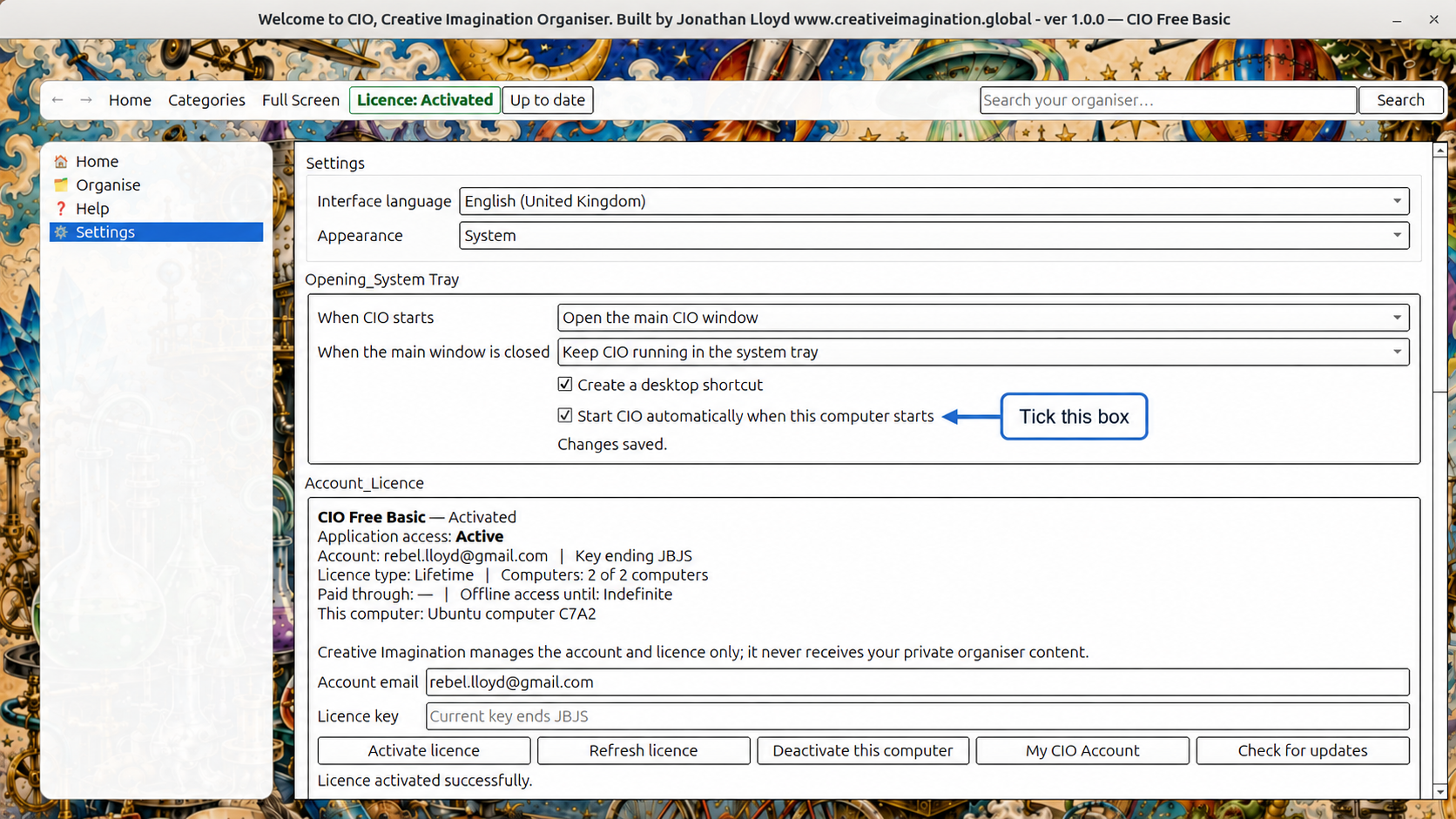
CIO is ready to use
That’s it. Creative Imagination Organiser is now installed and activated on your Ubuntu computer.
You can now begin organising your Categories, Subcategories, Note pads, Statistics and other CIO information.