
Install CIO on Windows
A simple step-by-step guide to downloading, installing, opening and activating Creative Imagination Organiser.
Windows and antivirus software can sometimes carry out extra checks when CIO is first downloaded. If one of the messages shown below appears, simply follow the matching instructions.
You may see one, several or none of these security messages, depending on your Windows version and security software.
Important
For your security, only download CIO from the official Creative Imagination website:
www.creativeimagination.global
Please do not download CIO from any other website, third-party source or file-sharing service.
Before You Start
Windows and antivirus programs may carry out additional checks when newly released software is downloaded and installed.
Why might Windows or antivirus software show a message?
A message such as Windows protected your PC does not by itself mean that CIO has been identified as harmful.
CIO is still developing recognition with Microsoft and antivirus providers. Creative Imagination is working to make these providers aware of CIO and will use their software-submission and review processes where available.
While that recognition develops, some security messages may continue to appear during download or installation. The examples below show you what you may see and what to do.
Windows Installation
Follow the main steps in order. The security-message sections only apply if that particular message appears on your computer.
Step 1 — Download CIO
Sign in to your CIO account and download the Windows version for your CIO edition.
You should receive one of these installer files:
Free Basic:
Creative_Imagination_Organiser_Free_Basic_Setup.exe
Advanced:
Creative_Imagination_Organiser_Advanced_Setup.exe
Allow the download to finish completely. Unless you have chosen another location, Windows will normally place the installer in your Downloads folder.
Step 2 — Open the CIO installer
Open your Downloads folder and double-click the CIO setup file.
Windows or your antivirus software may now perform a security check. If no message appears, continue directly with the installation.
If Windows says “Windows protected your PC”
Windows SmartScreen may display the blue Windows protected your PC screen.
Select More info.
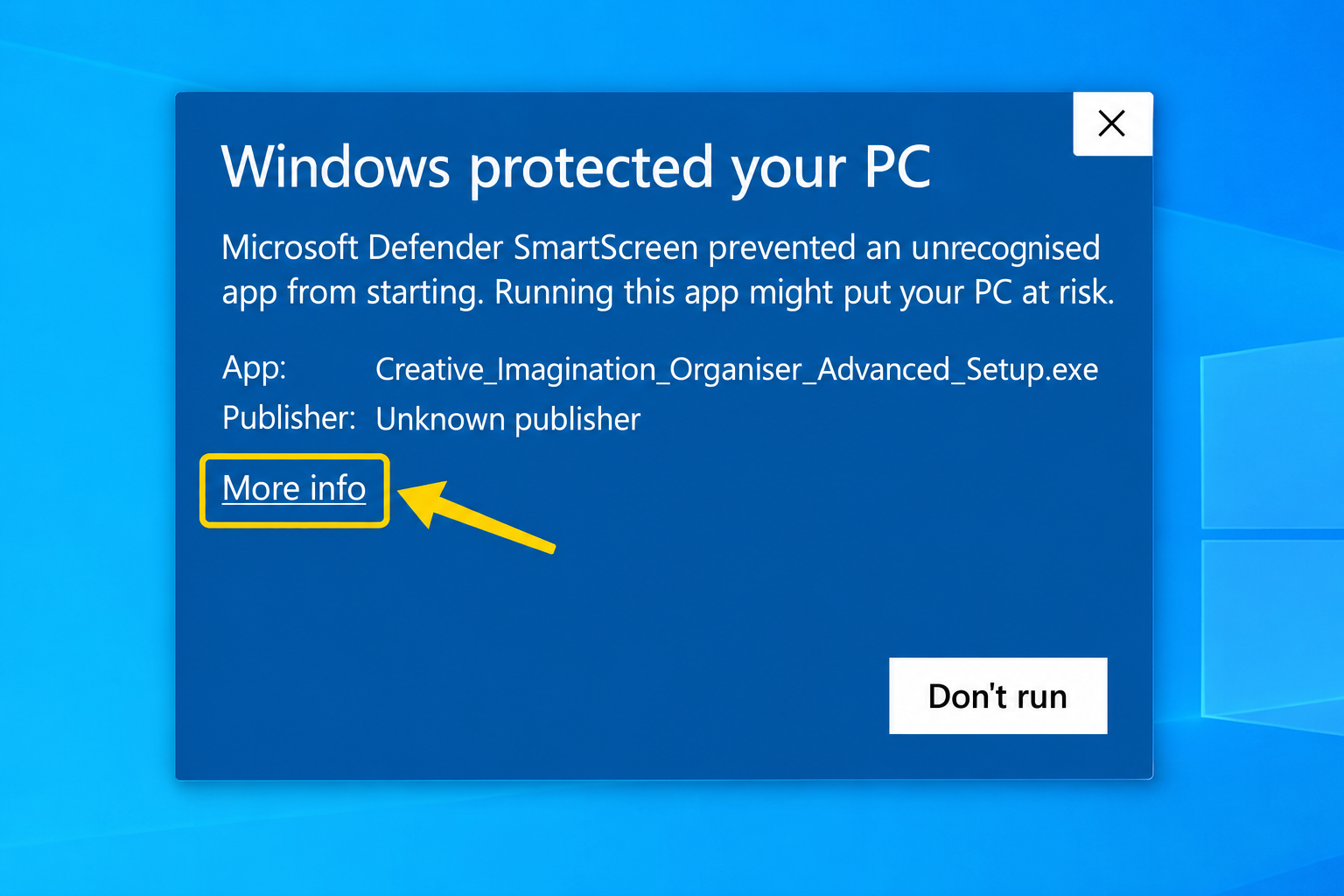
Select More info to display the next option.
Then select “Run anyway”
After selecting More info, Windows will display the Run anyway option.
Select Run anyway to continue opening the CIO installer.
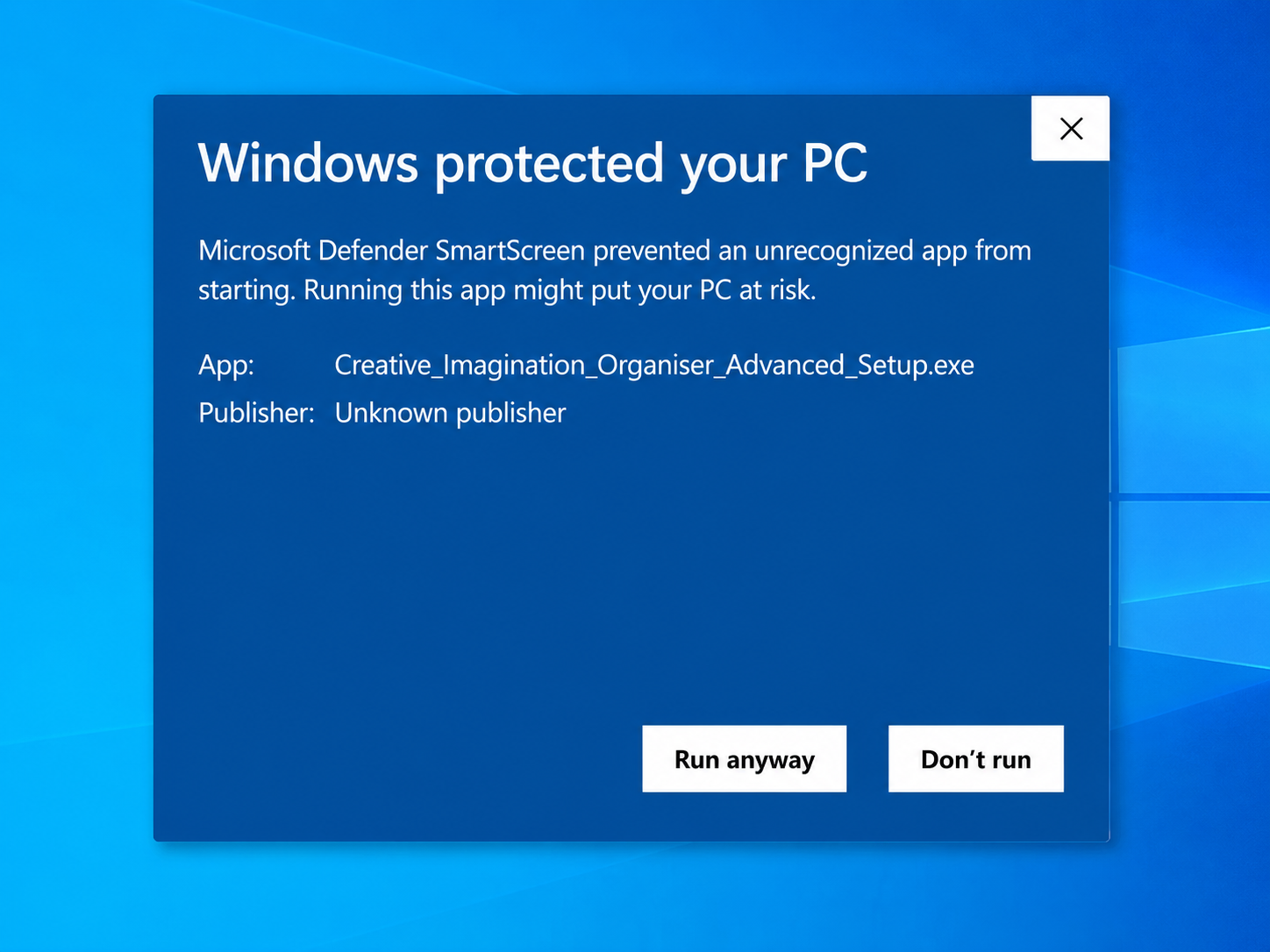
Select Run anyway to continue.
If Norton checks CIO
Norton may temporarily pause the CIO installer while it carries out its security check.
If Norton says that it is scanning the file, allow the check to complete. Once Norton releases the installer, continue with the installation.
The time shown by Norton is an estimate and occasionally the check may take longer.
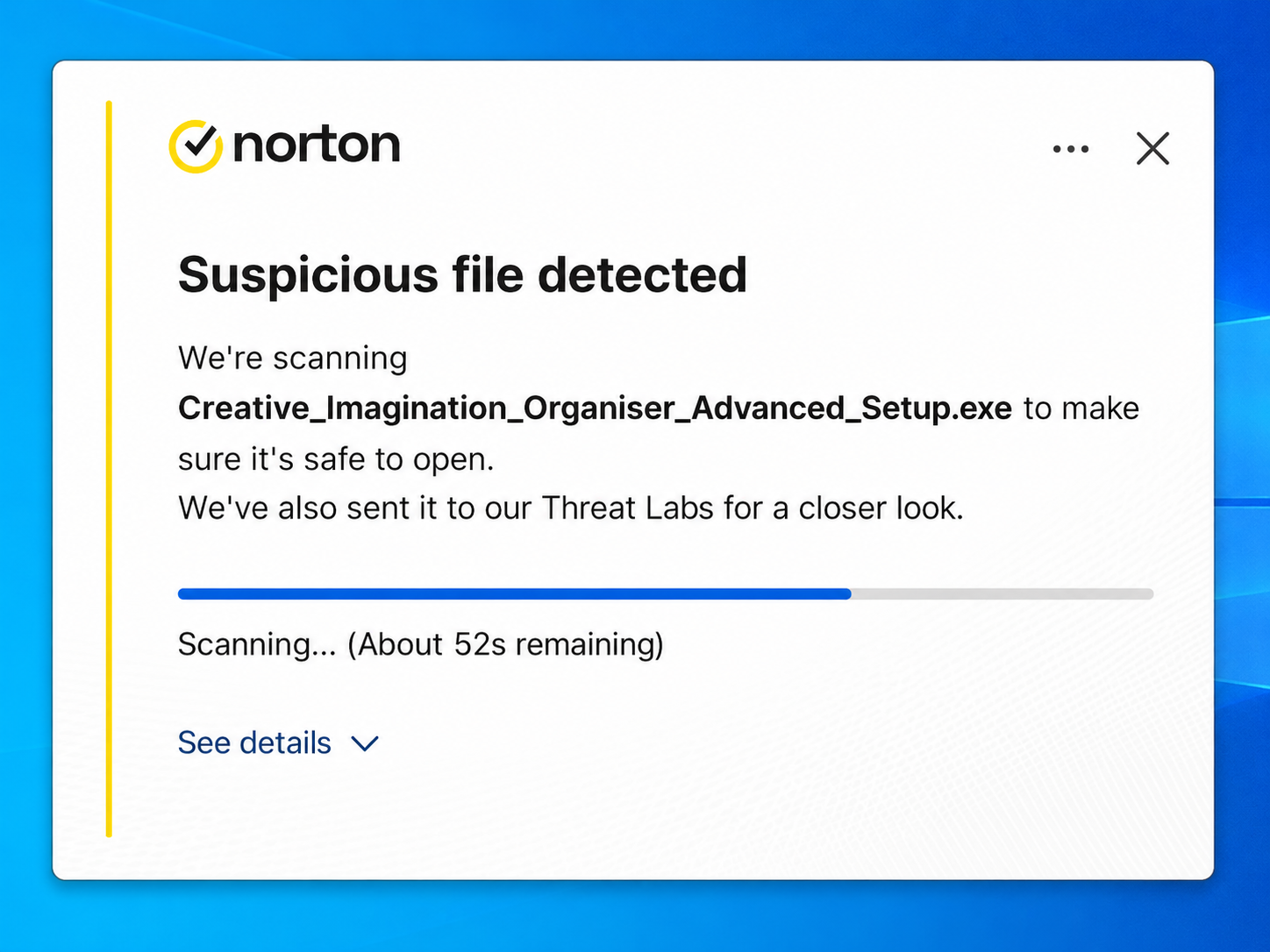
Example of Norton carrying out a security check on the CIO installer.
If Windows temporarily says it cannot access the file
You may occasionally see: Windows cannot access the specified device, path or file.
This can occur while security software is still checking or temporarily holding the installer.
- Select OK.
- If Norton or another security program is still checking CIO, allow that check to finish.
- Return to your Downloads folder.
- Double-click the CIO installer again.
If no security check is taking place and the message continues to appear, download a fresh copy of CIO from the official Creative Imagination website.
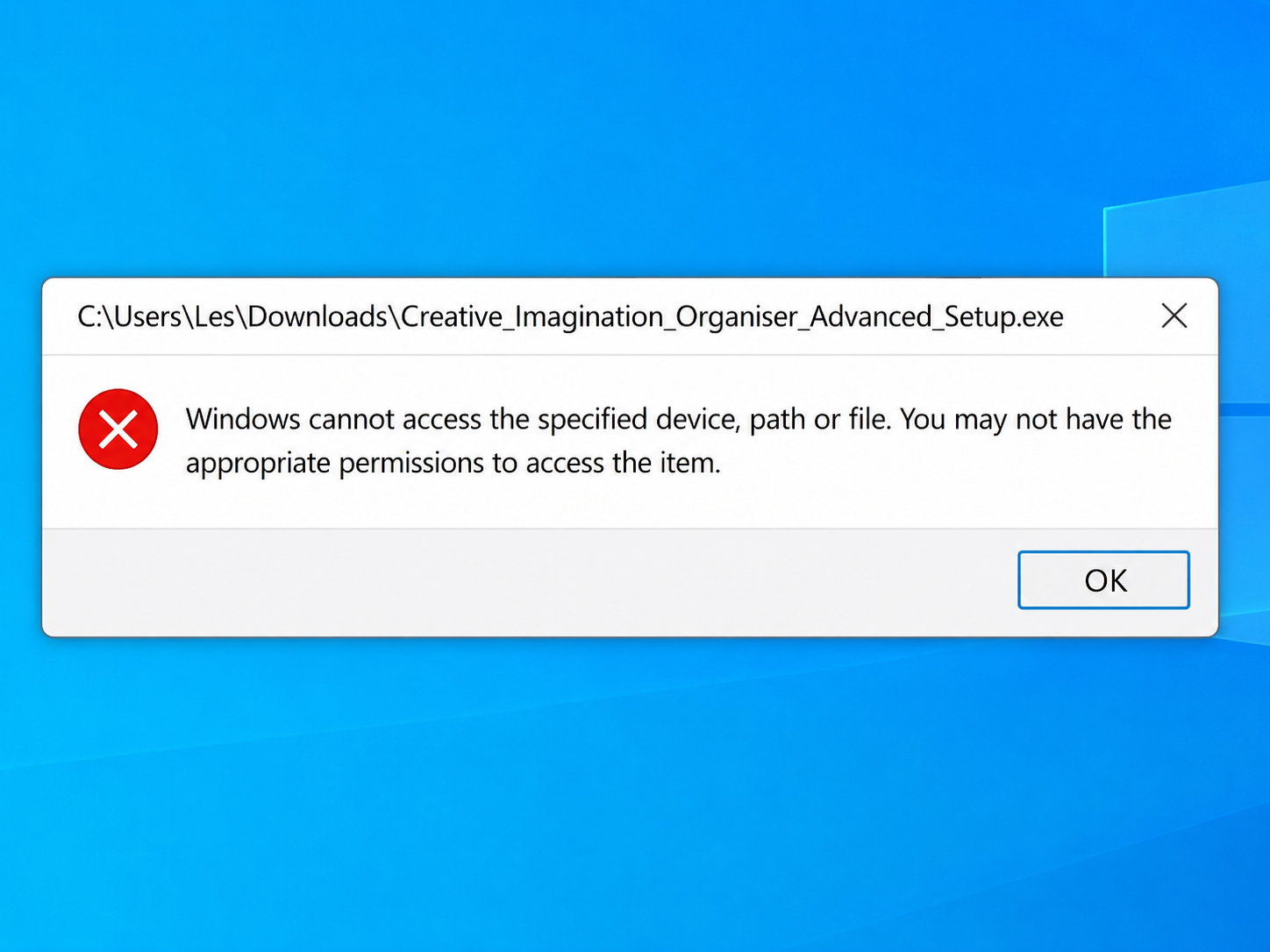
Example of the temporary Windows file-access message.
Step 3 — Complete the installation
Once the CIO installer opens, follow the on-screen installation instructions.
If Windows asks permission
Windows may ask: Do you want to allow this app to make changes to your device?
If you opened the CIO installer that you downloaded from the official Creative Imagination website, select Yes.
Continue through the CIO setup until Windows confirms that installation has finished.
Step 4 — Open CIO
When installation is complete, open Creative Imagination Organiser from the Windows Start menu or the CIO shortcut created during installation.
The first time CIO opens, it may ask you to activate your CIO licence.
Step 5 — Activate CIO
In CIO, go to:
Settings > Account & Licence
- Enter the email address used for your CIO account.
- Enter the licence key shown in My Account on the Creative Imagination website.
- Select Activate licence.
Once activation is confirmed, CIO is ready to use on that computer.
Installation Complete
CIO is now installed and ready for you to begin organising.
Return to CIO Training whenever you want step-by-step help with a feature or a quick refresher.